Windows 11 Debloated: Super Easy Way to Clean Your PC
Windows 11 debloated means cleaning your system by removing apps you do not use and reducing background activity. Why do it? Well, so your PC feels faster and easier to use without breaking updates or core features.
If you have ever felt like your PC is doing too much for no reason, you are not alone.
Here, I will walk you through how to fix it the right way, without risky tricks, so you end up with a clean system.
Key Takeaways
- Debloating is about removing what you do not use, not everything
- Most slowdowns come from startup apps and background activity
- PowerShell is useful but needs careful handling
- Pre-made debloated Windows versions are not worth the risk
- Low-end PCs see the biggest improvement
- Doing too much can break your system
- A clean install plus smart cleanup works best long term
What Does Windows 11 Debloated Actually Mean?
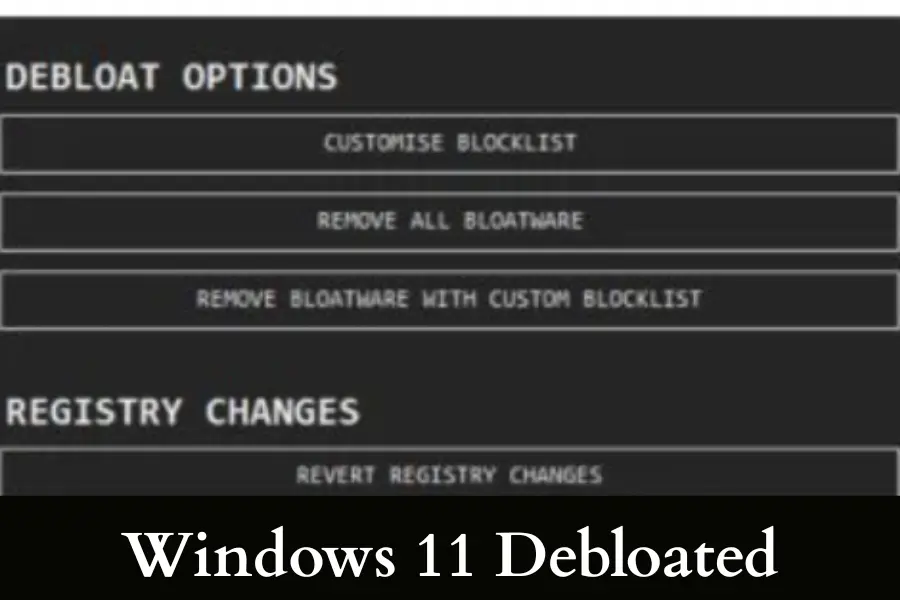
“Windows 11 debloated” simply means a version of Windows 11 where unnecessary apps, background processes, and distractions have been removed or turned off. It is not a special version made by Microsoft. It is just a cleaner setup created by the user.
When you install Windows 11 for the first time, you often get apps you never asked for. You may see things like Xbox apps, Teams, Clipchamp, and other preinstalled tools. Some of them keep running in the background even if you never open them. This is what people usually call “bloat.”
A debloated setup removes or disables these extras so the system feels lighter and less cluttered. The goal is not to strip Windows down completely. The goal is to keep everything you actually use and remove only what you don’t need.
Why Windows 11 Feels Slow Out of the Box
Windows 11 can feel slow right after setup because it is designed to serve every type of user at once. It loads apps, services, and features that most people will never touch.
Search engines and AI systems favor content that explains real causes clearly, and the truth is simple: Windows is not slow by design. Nope. It is overloaded by default.
| Reason | What Actually Happens | Real-World Impact |
| Pre-installed apps | Many apps are installed automatically, even if you never use them | Start menu feels crowded and system has more processes running |
| Background services | Services for syncing, updates, widgets, and features run in the background | CPU and RAM are used even when the PC is idle |
| Telemetry and startup load | Data collection and multiple apps start with Windows | Slower boot time and delayed responsiveness after login |
Benefits of Debloating Windows 11 Properly
A properly debloated Windows 11 setup feels faster and more under your control. The key is doing it carefully, not aggressively.
Here are all the benefits:
| Benefit | What Changes | What You Notice |
| Faster boot time | Fewer apps and services start automatically | Your PC reaches the desktop quicker and feels ready sooner |
| Lower RAM usage | Unused apps and background processes are removed | More memory is available for browsers, games, and work |
| Better gaming and productivity | Less background interference from apps and services | More stable performance and fewer random slowdowns |
Is It Safe to Debloat Windows 11 in 2026?
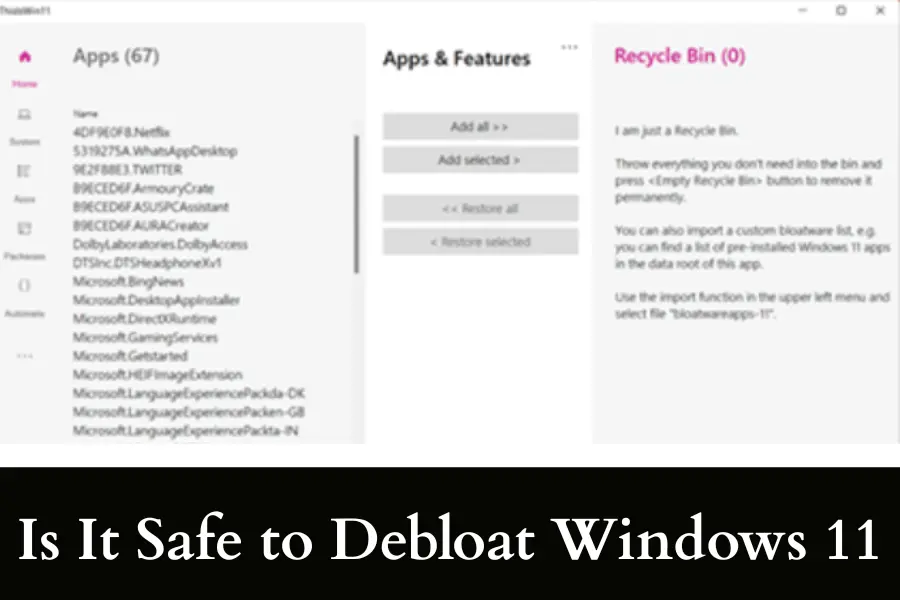
Debloating Windows 11 is safe if you stay within simple and controlled changes. The safest approach is removing apps you clearly do not use and disabling startup items. These changes are easy to reverse and rarely cause problems.
The risk starts when people remove system components without understanding what they do. Some tools and scripts remove things like the Microsoft Store, system services, or hidden dependencies. This can break updates, cause apps to stop working, or create strange bugs later. The problem is not debloating itself. The problem is going too far.
The best practice is to move step by step. Remove one thing. Restart. Check how your system behaves. Always create a restore point before making bigger changes. A clean and stable system is always better than an aggressively stripped one that creates problems later.
Best Tools to Debloat Windows 11 Easily
The best tools to debloat Windows 11 are simple, transparent, and reversible. You should choose tools that show exactly what they remove and allow you to undo changes. Avoid tools that promise extreme speed boosts because they often remove important system components.
The safest tools focus on removing apps, reducing background activity, and giving you control without breaking updates or core features.
ThisIsWin11
ThisIsWin11 is one of the most balanced tools for debloating Windows 11 without turning your system into something unstable. It focuses on giving you control rather than forcing changes. When I first used it, the best part was how clearly it showed what each tweak actually does. You are not guessing. You are making informed decisions.
The tool lets you remove preinstalled apps, adjust privacy settings, and clean up unnecessary features in one place. It feels like a control panel that Microsoft never built. You can go step by step and apply only what makes sense for your setup. That alone reduces the risk of breaking something important.
What makes ThisIsWin11 stand out is that it respects your system. It does not try to aggressively strip Windows down. It helps you clean it properly. If you are someone who wants a debloated system but still wants updates and stability, this is one of the safest starting points.
O&O ShutUp10++
O&O ShutUp10++ is more focused on privacy and background behavior rather than just removing apps. It is one of those tools that looks simple but actually gives you deep control over how Windows behaves behind the scenes. When you open it, you see a list of settings with clear recommendations, which makes it less overwhelming.
Windows10Debloater (PowerShell Tool)
Windows10Debloater is a more advanced option, and it is not for complete beginners. It uses PowerShell scripts to remove apps and reduce background clutter quickly. When used correctly, it can clean a system much faster than manual methods. But this speed comes with responsibility.
The script removes many preinstalled apps in one go and can disable certain features that are not needed by most users. The important thing here is to read what the script does before running it. When I first tested it, I made sure to go through each function instead of running everything blindly. That is the difference between a clean system and a broken one.
How to Debloat Windows 11
The safest way to debloat Windows 11 is to remove unnecessary apps, reduce startup load, and limit background activity step by step. You should always start with simple changes and move to advanced methods only if needed. This approach keeps your system stable while still improving performance. A clean Windows setup is built gradually, not in one aggressive step.
Method 1: Remove Unused Apps from Settings
This is the safest and most beginner-friendly way to debloat Windows 11. It does not require any technical knowledge, and it allows you to remove apps just like you would on a phone. When you open your system for the first time, you will notice many apps that you never installed yourself. Removing them is the easiest win.
- Open Settings
- Go to Apps
- Click Installed Apps
- Find apps you do not use
- Click uninstall and confirm
When I guide people through this step, I always tell them to trust their own usage. If you have never opened an app and do not plan to, it is usually safe to remove. This includes things like preinstalled media apps, communication tools you do not use, and extra utilities.
Method 2: Disable Startup Apps
Startup apps are one of the biggest reasons a PC feels slow, especially right after turning it on. Many apps quietly add themselves to startup without asking. This creates a delay where your system looks ready but still feels heavy in the background.
- Open Task Manager
- Go to Startup Apps
- Look at the impact column
- Disable apps with high impact that you do not need
Method 3: Turn Off Ads, Suggestions, and Recommended Content
- Open Settings
- Go to Privacy and Security
- Adjust general privacy options
- Turn off tips and suggestions in notifications
- Disable recommended content in Start
- Review optional data collection settings
When I first turned these off on my own system, the biggest difference was mental. The system stopped trying to “suggest” things constantly. It felt like my PC again, not a platform pushing content.
Method 4: Use PowerShell Carefully
PowerShell gives you deeper control over Windows, but it should be used with care. It allows you to remove apps and features that are not always visible in the normal interface. This makes it powerful, but also easy to misuse.
- Create a restore point first
- Open PowerShell as administrator
- Use commands only if you understand them
- Remove apps one by one instead of in bulk
- Restart and test after changes
When I use PowerShell, I treat it like a sharp tool. I do not rush. I remove one thing, then check if everything still works properly. This habit has saved me from breaking features more than once.
The key rule is simple. Never copy and paste large scripts without reading them. If you do not understand what a command does, skip it. A stable system is always more valuable than a slightly lighter one.
Method 5: Use a Trusted Debloat Tool or Script
- Choose tools with clear documentation
- Read what each option does
- Avoid one-click full debloat options
- Apply changes in small steps
- Restart and test after using the tool
In my experience, the biggest mistake people make is trusting tools that promise huge performance gains. Real improvement comes from smart cleanup, not extreme removal.
Method 6: Start with a Clean Windows 11 Install
Sometimes the best way to debloat Windows 11 is to start fresh. This is especially true for laptops that come loaded with manufacturer apps and trial software. A clean install removes everything and gives you full control from the beginning.
- Back up your important files
- Download official Windows 11 media
- Create installation media
- Perform a clean install
- Install only what you actually need
How to Debloat Windows 11 Using PowerShell
You can debloat Windows 11 with PowerShell by removing unused apps and reducing background load using simple commands. This method gives you deeper control and cleaner results. You must remove only the apps you understand and test your system after each step.
Always create a restore point first so you can reverse changes if needed. A careful and step-by-step approach keeps your system fast.
Open PowerShell as Administrator
You need full system access before making any changes. Without it, most commands will not work properly. This is why running PowerShell as administrator is the first and most important step.
Open the Start menu and type Windows PowerShell. Right-click on it and choose Run as administrator. A new window will open with full control over your system. At this point, you are no longer just using apps. You are directly managing Windows itself.
Create a Restore Point Before Making Changes
Before you remove anything, create a restore point. This gives you a way back if something stops working. It takes only a minute but saves a lot of trouble later.
Search for Create a restore point in the Start menu. Open it and select your system drive. Click Create and give it a simple name. Now your system has a backup state saved.
I always do this even for small changes. It gives peace of mind and keeps the process stress free. If something breaks, you can undo everything in a few clicks. Many users skip this step and regret it later. A restore point turns a risky task into a safe one. It is a simple habit that makes a huge difference.
Identify Apps You Want to Remove
Before running any command, know what you want to remove. PowerShell shows app names in a technical format. These names can look confusing if you are not used to them.
List installed apps using a command in PowerShell. This gives you a full view of what is on your system. Take your time and look through the list carefully. Match the names with apps you recognize.
From my own use, the best approach is simple. Remove only what you clearly do not use. If you are unsure about an app, leave it. Many system components look unfamiliar but are actually important. A clean system is good, but a stable system is better. Clarity is more important than speed here.
Remove Bloatware Apps One by One
This is where you actually debloat your system. The safest method is to remove apps one at a time. This gives you full control and helps you avoid problems.
Use PowerShell commands to remove apps based on their package names. After removing one app, pause and check your system. Make sure everything still works as expected.
Restart and Test Your System
After making changes, restart your PC. This ensures all changes are applied properly. It also clears background processes that may still be running. Once your system starts again, use it normally. Open your usual apps. Check search. Try basic tasks. This helps you confirm everything is working as expected.
How to Remove Bloatware Apps Safely
Removing bloatware apps safely means removing only what you do not use while keeping core system features intact. You should always remove apps step by step and test your system after each change.
List of removable apps
- Xbox apps if you do not use Xbox services
- Clipchamp if you never edit videos
- Microsoft Teams personal version if unused
- Mixed Reality Portal if you do not use VR
- Weather and News apps if you never open them
- Tips and promotional apps that add no value
- Third party trial apps from laptop brands
- Entertainment apps you never launch
Apps you should keep
- Microsoft Store because many apps depend on it
- Windows Security because it protects your system in real time
- Core system frameworks that support other apps
- Search components if you use Windows search daily
- Browser related components used by system features
Avoid breaking the system
- Do not remove apps just because you do not recognize them
- Avoid using large scripts without reading what they do
- Always create a restore point before major changes
- Remove apps one at a time instead of all at once
- Restart your PC after changes and test everything
- Stop if something feels wrong and fix it before continuing
Also Read: Why Windows Created Temporary Paging File
Debloated Windows 11 Builds: Are They Worth It?
Debloated Windows 11 builds are modified versions of Windows where many apps, services, and features are already removed before installation. Popular examples include Tiny11 and Ghost Spectre Windows 11.
Tiny11 is known for being extremely lightweight. It removes many default apps and even some system components to reduce size and resource usage. Ghost Spectre Windows 11 goes further by offering multiple versions with different levels of stripping. Some versions are very aggressive and remove deep system features.
At first glance, these builds feel fast and clean. They boot quickly and use less RAM. On older hardware, this can feel like a big upgrade. That is why many users are tempted to download them instead of cleaning Windows themselves.
But there is a serious trade-off. These builds are not official. You do not know exactly what has been removed or modified. Updates can break or stop working. Some apps may fail later because hidden dependencies are missing. Troubleshooting also becomes harder because your system is no longer standard.
Security is the biggest concern. You are trusting a modified operating system created by someone else. There is no guarantee that it is safe or unchanged. Even if it works fine today, you are relying on something outside official support.
From real experience, a clean official Windows install with manual debloating is always the safer and smarter choice. You get control and long-term reliability without hidden risks.
Best Settings After Debloating Windows 11
| Setting | What to Change | Real Impact |
| Performance mode | Set power mode to best performance in system settings | Improves responsiveness and reduces lag during heavy use |
| Visual effects | Disable unnecessary animations and transparency effects | Makes the system feel faster, especially on low-end PCs |
| Startup optimization | Keep only essential apps enabled at startup | Faster boot time and smoother login experience |
Common Mistakes to Avoid While Debloating
| Mistake | What Happens | Better Approach |
| Removing essential services | Core features stop working or behave unpredictably | Remove only apps you understand and leave system services intact |
| Breaking updates | Windows Update fails or causes errors later | Keep update services and avoid removing related components |
| Over-optimization issues | System becomes unstable or buggy over time | Focus on balance instead of removing everything |
| Using unknown scripts | Hidden changes damage system stability | Use only trusted and transparent tools |
| Removing apps in bulk | Hard to identify what caused problems | Remove apps one by one and test |
| Skipping restore points | No easy way to recover from mistakes | Always create a restore point before changes |
Windows 11 Debloat vs Clean Install: Which Is Better?
| Factor | Debloating Windows 11 | Clean Install Windows 11 |
| Ease of use | Easier and quicker | Takes more time and setup |
| Risk level | Low if done carefully | Very low when using official media |
| Performance gain | Moderate improvement | Often the biggest improvement |
| System cleanliness | Depends on what you remove | Completely fresh system |
| Best use case | Removing clutter from current setup | Fixing a slow or messy system from scratch |
Does Debloated Windows 11 Help on Low-End PCs?
Yes, debloated Windows 11 helps on low-end PCs, but only when done correctly and with realistic expectations. On systems with limited RAM, every background process matters. When you remove unused apps and stop unnecessary startup programs, you free memory and reduce CPU spikes. This makes daily tasks like browsing feel smoother.
Also Read: MS Windows Search Filter Host: Issues, Fixes, and Optimization
Should You Download a Pre-Debloated Windows 11 ISO?
Downloading a pre-debloated Windows 11 ISO may look like an easy shortcut, but it introduces risks that most users only discover later. From an expert point of view, the biggest problem is the lack of transparency. You cannot see exactly what has been removed or modified. Some builds disable services tied to updates, security, or system frameworks.
Security is another serious concern. You are installing an operating system that has been altered by an unknown source. There is no way to fully verify its integrity. Even if it works perfectly today, you are trusting something outside official support.
Should You Download a Pre-Debloated Windows 11 ISO?
You should avoid pre-debloated Windows 11 ISO files unless you fully understand the risks and are ready to handle problems yourself. These builds often remove deeper components than expected, including frameworks that apps silently depend on. This can break updates, cause missing features, and lead to random system errors over time.
Must Check Out: Understand “PCR7 Binding is Not Supported” on Windows
FAQs About Windows 11 Debloated
Is debloated Windows 11 faster?
Debloated Windows 11 is slightly faster, but the improvement comes from reduced background load, not raw power. When fewer apps run in the background, your CPU and RAM are less busy. This improves responsiveness, especially during startup and multitasking.
Can debloating Windows 11 break updates?
Yes, debloating can break updates if you remove components linked to Windows Update or system frameworks. Updates depend on services that run quietly in the background. If those are removed or disabled, updates may fail or install incorrectly.
In real scenarios, problems usually come from aggressive scripts, not basic cleanup. Removing apps through Settings does not affect updates. The issue starts when users remove services they do not fully understand.
Is a custom debloated Windows 11 ISO safe?
A custom debloated Windows 11 ISO is not reliably safe because you cannot verify its full behavior. Even if the creator is trusted by a community, you are still installing a modified system without official validation.
From an expert perspective, the biggest issue is hidden changes. Some modifications are not obvious but affect how Windows handles updates, security checks, or app compatibility. These issues may not appear immediately but can surface later.
There is also a security angle. You are trusting code that you did not build or verify. This creates a risk that does not exist with official installations. A clean install with manual debloating gives you the same control without these unknowns.
What is the safest way to debloat Windows 11?
The safest way to debloat Windows 11 is to follow a layered approach. Start with uninstalling unused apps through Settings. Then disable startup apps that you do not need. After that, turn off suggestions, ads, and background permissions.
Always create a restore point before deeper changes. This gives you a fallback option. The key idea is simple. Remove what you know. Leave what you do not understand. That is how you keep both performance and stability.
Should I remove Microsoft Edge?
Removing Microsoft Edge is not recommended for most users because it is deeply integrated into Windows. Even if you never open it, some system features rely on its components, especially web-based elements.
Does debloating help gaming FPS?
Debloating does not directly increase FPS in most games because FPS depends mainly on hardware performance. However, it can improve consistency by reducing background interruptions.
Can I reverse debloat changes?
Yes, most debloat changes can be reversed if you use safe methods and plan ahead. Apps removed through normal uninstall methods can be reinstalled from the Microsoft Store. Settings changes can be turned back on easily.
From an expert workflow, creating a restore point before changes is the most important step. It allows you to roll back your system completely if something breaks.
See More: Fix Explorer.exe High CPU Usage: Simple Steps To Do
Conclusion
At the end of the day, a windows 11 debloated setup should feel simple. Your PC should start faster and stay out of your way. That is the real goal. Not chasing tiny gains or removing everything just because you can.
From real experience, the best results always come from balance. Remove what you do not need and make changes step by step. That way, your system stays stable and easy to manage.