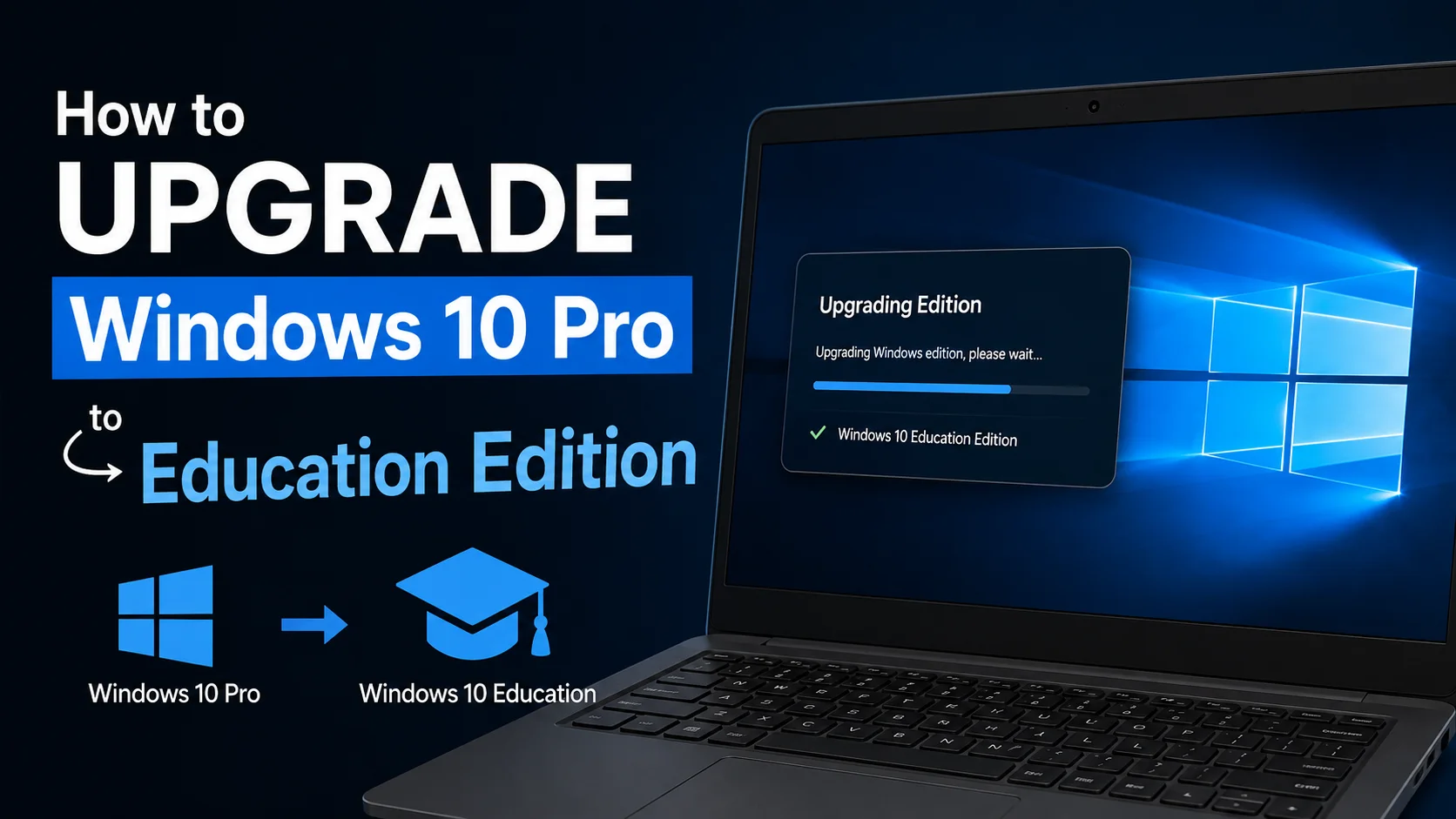
How to Upgrade Windows 10 Pro to Education Edition (Easy)
Windows 10 Education is a special version of Windows made for schools, colleges, and universities. It has almost the exact same tools as the business version called Enterprise, but it is licensed differently, specifically for education. If your school or college has given you an Education license and your computer currently has Pro on it, here is exactly how to switch.
Why Education instead of Enterprise?
Education and Enterprise editions do almost exactly the same things. Both include tools like AppLocker (which controls which programs are allowed to run), Credential Guard (which protects passwords), and remote networking tools for big organizations. The real difference is who is allowed to buy each one.
Education is sold only to schools and universities through special agreements, and it usually costs less than Enterprise because of that. If you are a student, teacher, or school IT worker, Education is almost always the correct choice, not Enterprise, even though the features look the same.
Method 1: Upgrade using Settings and a product key
This is the normal way to do it if your school has given you a key.
- Open Settings, then Update and Security, then Activation
- Click Change product key
- Type in the Education key your school’s IT department gave you
- Windows checks the key, downloads what it needs, and restarts
- Go to Settings, then System, then About, and check that it now says Windows 10 Education
Method 2: Upgrade using DISM (for school IT staff managing many computers)
DISM stands for Deployment Image Servicing and Management. It sounds complicated, but it is really just a tool built into Windows that can change editions from a command window instead of clicking through Settings. If you are setting up many student or staff computers at once, this method is much faster than doing each one by hand.
- Open Command Prompt and choose Run as Administrator
- Check which editions your computer can switch to by typing this command:
DISM /Online /Get-TargetEditions
If Education shows up in that list, run this command, replacing the X’s with your real product key:
DISM /Online /Set-Edition:Education /ProductKey:XXXXX-XXXXX-XXXXX-XXXXX-XXXXX /AcceptEula
The computer will restart on its own once the switch is finished.
If Education does not show up in that list, it usually means your current Pro installation cannot switch straight to Education this way, and using the product key method through Settings instead is more reliable. Our DISM error guide explains what to do when the list comes back empty or a key gets rejected.
Using a generic key first, then your real key
Some school IT departments set up computers using Microsoft’s public generic keys before adding the school’s real key later, especially when preparing many computers at once before handing them out. If that is your situation, our generic KMS key list has the exact Education key for that first step.
What changes after the upgrade
Nothing about your files, programs, or desktop changes. What you gain access to:
- The full Group Policy Editor with education specific settings
- AppLocker, for controlling which programs students are allowed to open
- Networking tools built for large school campuses
- Extra security tools like Credential Guard and Device Guard
- More control over when big Windows updates get installed
Common problems
The key gets rejected as invalid
Education keys are tied to a specific school’s agreement with Microsoft. A key from one school will usually not work on a computer outside that school’s agreement, even if the key looks like it is typed in correctly.
Education does not show up in the DISM list
This usually means your current Pro installation came from a version that does not support switching straight to Education this way. Using the product key method through Settings instead usually solves it.
Activation says “Notification” or shows a grace period
This usually means your computer needs to check in with your school’s activation server over the network. Ask your IT department to confirm your computer can reach that server.
Frequently asked questions
Can I go straight from Home to Education?
No. You need to upgrade to Pro first. There is no direct path from Home to Education.
Is Education the same thing as Enterprise?
Almost the same features, but different rules about who can buy it. Education is for schools, Enterprise is for businesses.
Will I lose my files during this upgrade?
No, this keeps your files, programs, and settings exactly where they were.
Can I activate Education with my personal Microsoft account?
No. Education activation only works through your school’s official agreement with Microsoft, not a personal account.
What to do next
Once the switch is confirmed, check our Windows edition comparison guide if you are still deciding whether Education or Enterprise better fits what your school actually needs.