How to Upgrade Windows 10 Pro to Enterprise Using DISM
Wondering How to Upgrade Windows 10 Pro to Enterprise Using DISM?
Upgrading Windows 10 Pro to Enterprise using DISM is one of the fastest and safest ways to unlock enterprise-level features without reinstalling Windows. The process keeps your files, applications, and settings intact while changing the Windows edition using official Microsoft servicing commands.
To upgrade Windows 10 Pro to Enterprise using DISM, open Command Prompt as Administrator and run the DISM /Set-Edition command with a valid Enterprise product key. After the upgrade finishes, restart your computer and activate Windows using a legitimate Enterprise license.
This guide explains every step in detail, including:
- DISM commands
- Activation methods
- Common errors
- Troubleshooting tips
- Important licensing considerations.
What Is DISM in Windows?
DISM stands for Deployment Image Servicing and Management. It is a built-in Microsoft command-line tool designed to service and manage Windows images.
IT administrators and advanced users commonly use DISM for:
- Repairing corrupted Windows images
- Enabling or disabling Windows features
- Managing offline installations
- Changing Windows editions
- Preparing system images for deployment
Unlike a clean installation, DISM can upgrade your Windows edition without deleting personal files or installed applications.
Why Use DISM for Windows Edition Upgrades?
Using DISM to upgrade Windows editions offers several advantages:
- No reinstall required
- Faster than formatting and reinstalling Windows
- Keeps applications and data intact
- Officially supported by Microsoft
- Suitable for businesses and IT environments
For many users, DISM is the easiest method to move from Windows 10 Pro to Enterprise.
Windows 10 Pro vs Enterprise
| Feature | Windows 10 Pro | Windows 10 Enterprise |
|---|---|---|
| Best For | Small businesses, professionals, power users | Large companies and organizations |
| Licensing | Retail or OEM license | Volume licensing through organizations |
| Maximum RAM Supported | 2 TB | 6 TB |
| Maximum CPUs Supported | 2 physical CPUs | 2 physical CPUs |
| Group Policy Management | Yes | Yes |
| BitLocker Encryption | Yes | Yes |
| Remote Desktop Host | Yes | Yes |
| Hyper-V Virtualization | Yes | Yes |
| Windows Sandbox | Yes | Yes |
| Microsoft Store Access | Full access | Can be restricted by IT admins |
| AppLocker | No | Yes |
| Credential Guard | Limited | Advanced protection included |
| Device Guard | No | Yes |
| DirectAccess | No | Yes |
| Windows To Go | No | Legacy support available |
| BranchCache | No | Yes |
| Advanced Threat Protection | Basic security | Advanced enterprise security tools |
| Update Control | Standard update settings | Advanced update and deployment control |
| Management Tools | Basic business management | Full enterprise IT management |
| LTSC Version Available | No | Yes |
| Virtual Desktop Access | Limited | Better virtualization support |
| Price | Lower cost | Higher cost |
| Main Advantage | Good balance of features and price | Maximum security and centralized control |
Before upgrading, it helps to understand what additional features Windows 10 Enterprise provides.
Key Enterprise Features
Windows 10 Enterprise includes everything in Pro, plus advanced business and security capabilities such as:
- AppLocker
- Credential Guard
- Device Guard
- DirectAccess
- Windows Defender Application Control
- Advanced Group Policy management
- Enterprise-level deployment tools
Who Should Upgrade to Enterprise?
Windows 10 Enterprise is best suited for:
- Businesses
- IT departments
- Corporate environments
- Organizations managing multiple devices
- Users needing advanced security features
Home users usually do not need Enterprise unless they specifically require its business tools.
Requirements Before Upgrading
Before running DISM commands, make sure your system meets the necessary requirements.
1. Check Your Current Windows Edition
Open Command Prompt as Administrator and run:
dism /online /Get-CurrentEdition
You should see:
Current Edition : Professional
If your current edition is not Professional, the upgrade path may differ.
2. Verify Enterprise Is Available as a Target Edition
Run:
dism /online /Get-TargetEditions
If supported, you should see:
Target Edition : Enterprise
If Enterprise does not appear, your Windows installation may not support the upgrade.
3. Ensure You Have Administrator Access
You must run DISM commands using an elevated Command Prompt.
4. Obtain a Valid Enterprise Product Key
You need either:
- A legitimate Windows 10 Enterprise MAK key
- A KMS activation environment
- A generic setup key for temporary installation
5. Back Up Important Files
Although DISM upgrades are generally safe, creating a backup is always recommended.
You can:
- Create a restore point
- Back up important documents
- Use system imaging software
Is your Windows 11 debloated, too? If yes, then check out how to clean your PC easily.
How to Upgrade Windows 10 Pro to Enterprise Using DISM
Follow these steps carefully.
Step 1 – Open Command Prompt as Administrator
- Press the Windows key
- Type cmd
- Right-click Command Prompt
- Select Run as administrator
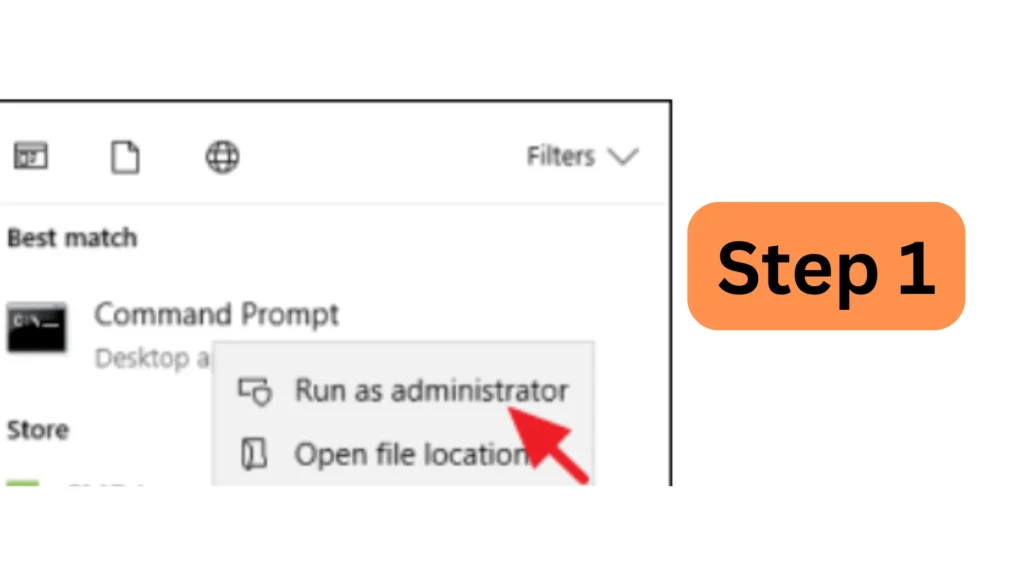
You must have elevated privileges for DISM edition servicing.
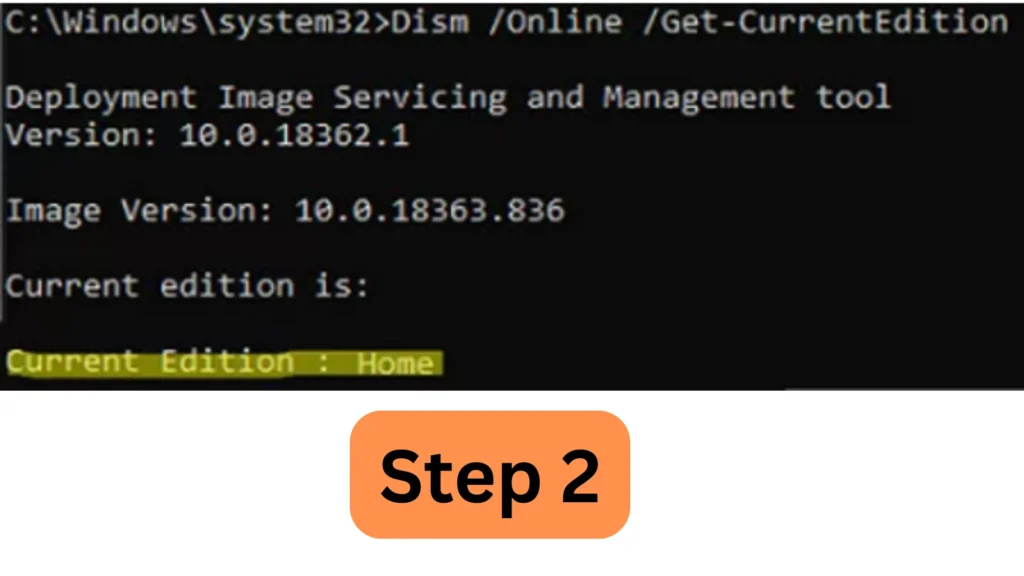
Step 2 – Confirm the Current Edition
Run:
dism /online /Get-CurrentEdition
Verify the output says:
Professional
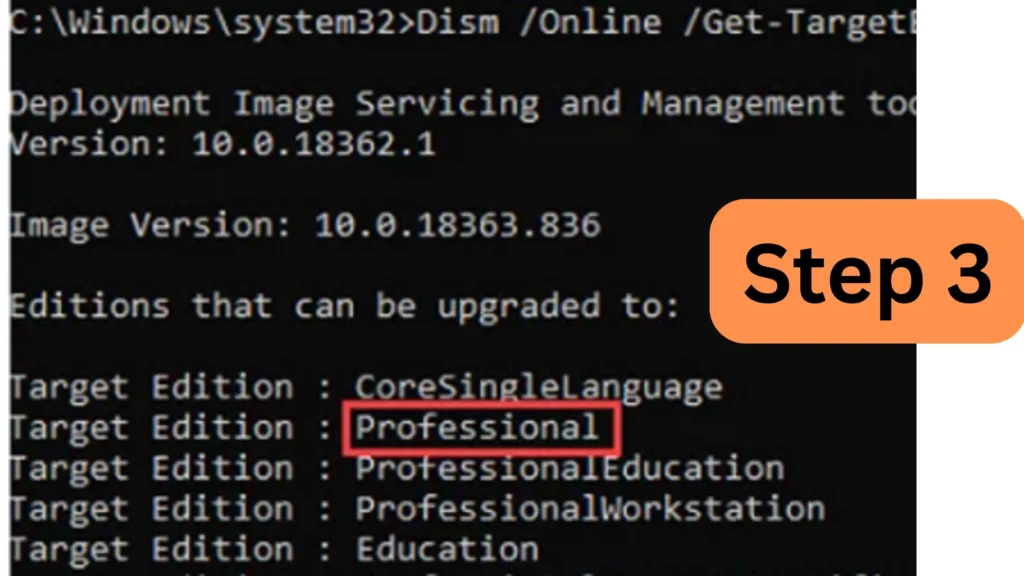
Step 3 – Check Supported Target Editions
Run:
dism /online /Get-TargetEditions
Look for:
Enterprise
If Enterprise appears, your system supports the upgrade.
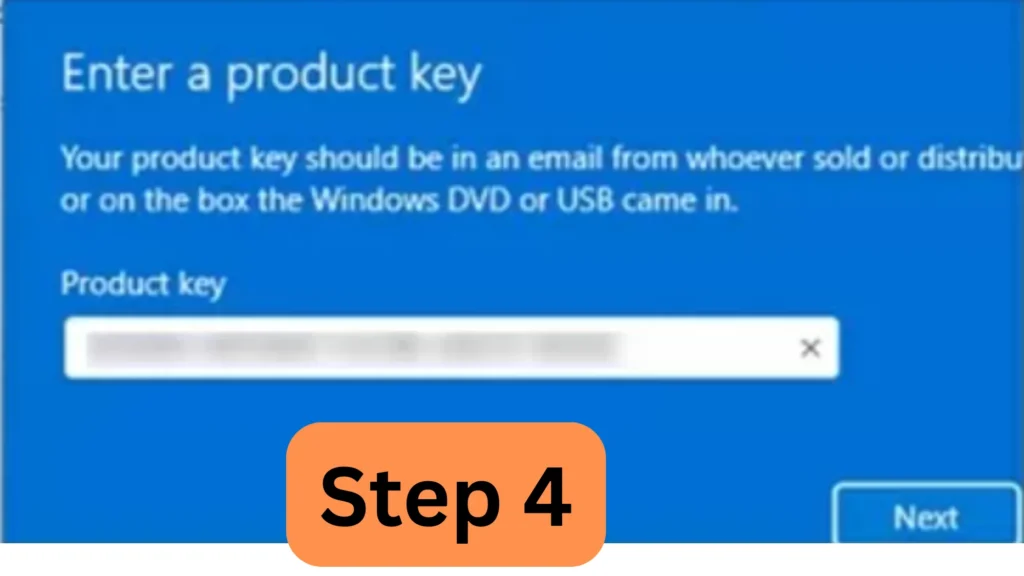
Step 4 – Run the DISM Upgrade Command
Use the following command:
dism /online /Set-Edition:Enterprise /ProductKey:XXXXX-XXXXX-XXXXX-XXXXX-XXXXX /AcceptEula
Replace the placeholder with your actual Enterprise product key.
Command Breakdown
/online
Targets the currently running operating system.
/Set-Edition
Changes the Windows edition.
/ProductKey
Applies the Windows Enterprise product key.
/AcceptEula
Automatically accepts Microsoft’s license agreement.
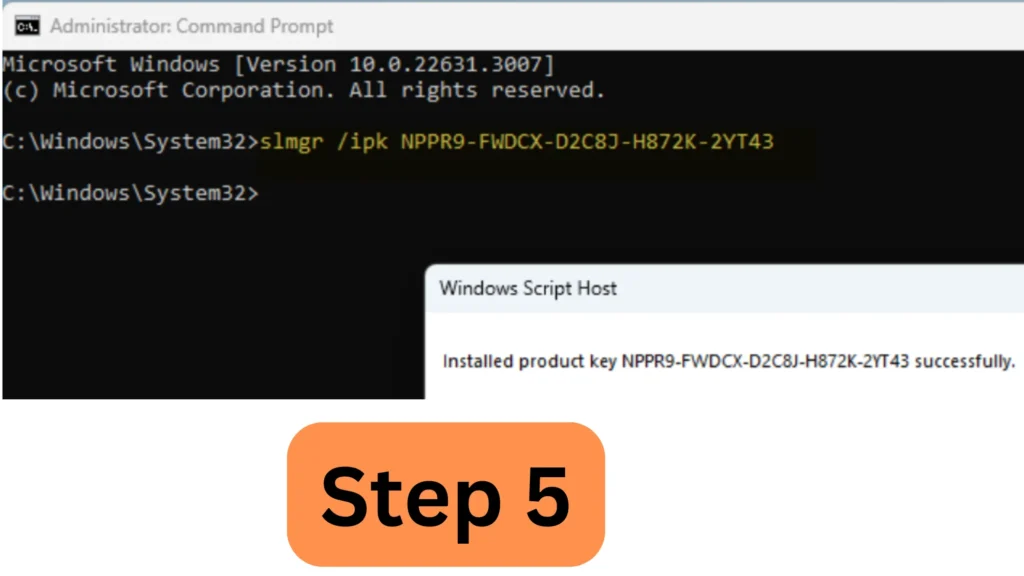
Step 5 – Use the Generic Enterprise KMS Key (Optional)
If you only want to perform the edition upgrade before activating later, you can use Microsoft’s generic KMS setup key:
NPPR9-FWDCX-D2C8J-H872K-2YT43
Example command:
dism /online /Set-Edition:Enterprise /ProductKey:NPPR9-FWDCX-D2C8J-H872K-2YT43 /AcceptEula
Important:
- This key does not permanently activate Windows
- It is mainly for KMS environments
- You still need proper activation later
Step 6 – Wait for the Upgrade Process
DISM will begin processing the edition change.
During this stage:
- System files are updated
- Enterprise packages are installed
- Licensing components are configured
The process may take several minutes.
Do not shut down your PC during the upgrade.
Step 7 – Restart Your Computer
After DISM completes successfully, restart the PC.
Windows may display:
- “Working on updates”
- “Configuring Windows features”
This is normal.
Step 8 – Verify the Upgrade
After rebooting, verify the edition change.
Method 1 – Use Winver
Run:
winver
You should now see:
- Windows 10 Enterprise
Method 2 – Use DISM Again
Run:
dism /online /Get-CurrentEdition
Expected output:
Current Edition : Enterprise
How to Activate Windows 10 Enterprise
Changing editions does not automatically activate Windows permanently.
You still need a valid Enterprise license.
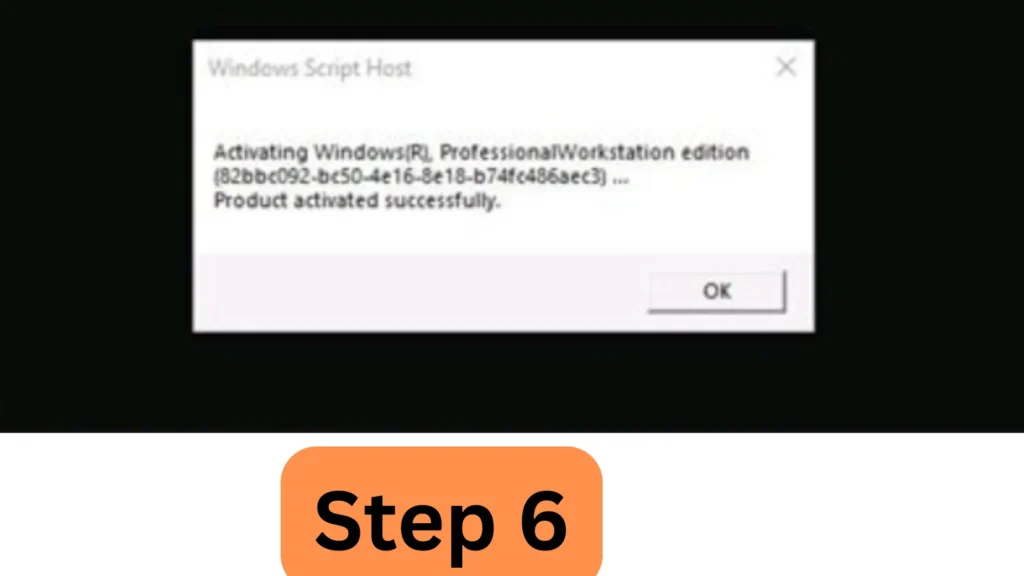
Option 1 – Activate Using a MAK Key
Run:
slmgr /ipk XXXXX-XXXXX-XXXXX-XXXXX-XXXXX
Then activate:
slmgr /ato
Option 2 – Activate Through KMS
Organizations commonly use KMS servers for volume activation.
If your network has a configured KMS server, activation may occur automatically.
Common DISM Errors and Fixes
Here are the most common problems users encounter during the upgrade process.
Error 87 – The Parameter Is Incorrect
Cause
Usually caused by:
- Typing mistakes
- Incorrect spacing
- Invalid syntax
Fix
Carefully retype the command exactly as shown.
Error 50 – DISM Does Not Support Servicing Windows PE
Cause
The command was run inside Windows PE instead of the full operating system.
Fix
Boot normally into Windows and rerun the command.
Enterprise Does Not Appear in Target Editions
Possible Reasons
- Unsupported Windows build
- Corrupted installation
- Wrong base edition
- Licensing restrictions
Fixes
- Install the latest Windows updates
- Repair Windows image
- Verify edition compatibility
Try running:
DISM /Online /Cleanup-Image /RestoreHealth
Then check target editions again.
Also, it is helpful to know how you can update firmware. For this, have a look at this guide – How to Update S70 3.2.f.74 Firmware within minutes.
Activation Failed After Upgrade
Common Causes
- Invalid license key
- No KMS server access
- Internet connectivity problems
- Incorrect activation channel
Solutions
- Verify the key
- Contact your IT administrator
- Retry activation later
Advantages of Upgrading With DISM
Using DISM instead of reinstalling Windows provides several benefits.
Keeps Files and Applications
Your installed programs and personal data remain intact.
Saves Time
You avoid:
- Reinstalling software
- Reconfiguring settings
- Restoring backups
Official Microsoft Method
DISM is Microsoft’s built-in servicing tool, making it a reliable upgrade method.
Suitable for Enterprise Environments
Businesses commonly use DISM for:
- Mass deployments
- Automated servicing
- Enterprise migrations
Can You Downgrade Back to Windows 10 Pro?
Technically, downgrading is not as simple as upgrading.
In many cases, returning to Pro requires:
- A clean installation
- Reimaging the device
- Restoring from backup
This is why backing up your system before upgrading is important.
Security and Licensing Considerations
Always use genuine Microsoft licenses.
Avoid Unauthorized Activators
Illegal activation tools may:
- Install malware
- Compromise security
- Break Windows updates
- Violate licensing agreements
Understand Enterprise Licensing
Windows Enterprise is primarily intended for:
- Organizations
- Volume licensing customers
- Managed IT environments
Ensure you comply with Microsoft licensing terms.
Frequently Asked Questions
Can I Upgrade Windows 10 Pro to Enterprise for Free?
No. You still need a valid Enterprise license for permanent activation.
Does DISM Delete Files?
No. DISM edition upgrades typically preserve:
- Files
- Applications
- User settings
However, backups are still recommended.
Is a Restart Required?
Yes. Restarting finalizes the edition change.
Can I Use the Generic KMS Key Permanently?
No. The generic KMS key only installs the Enterprise edition. Proper activation is still required.
Does This Method Work on Windows 11?
Yes. Similar DISM edition servicing commands work on Windows 11, though licensing and supported editions may differ.
Is DISM Safe?
Yes. DISM is an official Microsoft utility included with Windows.
Final Thoughts
Upgrading Windows 10 Pro to Enterprise using DISM is the fastest and most efficient way to unlock enterprise features without reinstalling Windows. The process is officially supported, preserves your data, and can usually be completed in just a few minutes.
For businesses and advanced users needing stronger security, centralized management, and enterprise-grade deployment tools, Windows 10 Enterprise provides significant advantages over the Pro edition.
Before upgrading, make sure you:
- Verify edition compatibility
- Back up important files
- Use legitimate activation methods
- Obtain a valid Enterprise license
When used correctly, DISM makes Windows edition upgrades simple, reliable, and professional.