How to Change Windows 10 Edition Without Reinstalling
Short answer first: yes, in almost every case you can switch between Windows 10 editions without wiping your computer. This guide covers every method that does this, and tells you exactly which one to use for your situation.
The three tools that handle this
Settings, the easiest option for one computer moving up
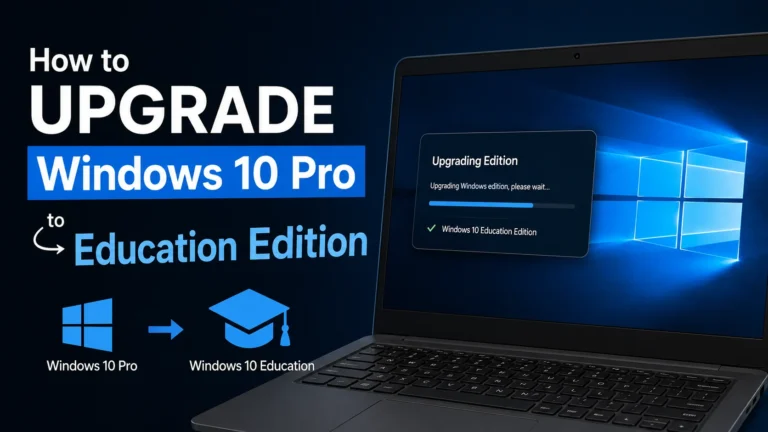
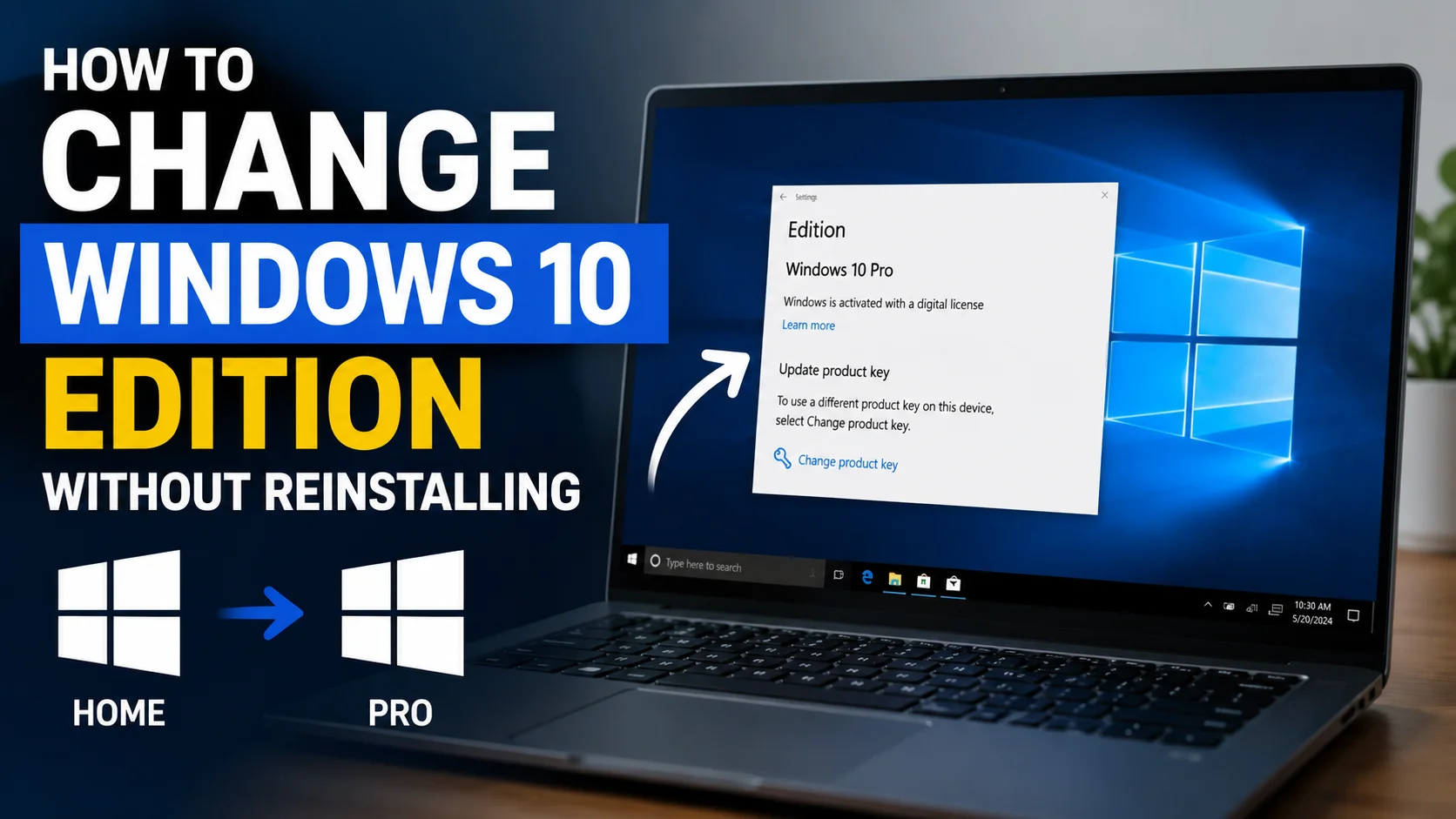
This is the right choice if you are on a single computer and moving to a bigger edition, Home to Pro, Pro to Enterprise, or Pro to Education. Go to Settings, then Update and Security, then Activation, click Change product key, type in your new edition’s key, and Windows handles the rest with one or two restarts.
This only works moving upward. It will not offer you a way to move down to a smaller edition.
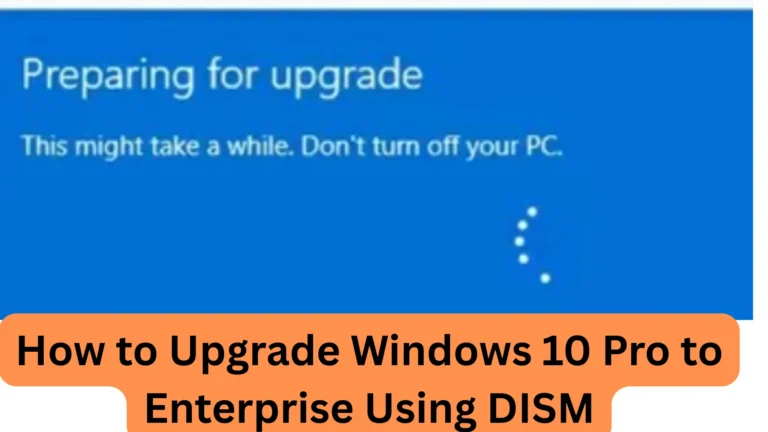
DISM, the best option for IT workers and scripts
DISM stands for Deployment Image Servicing and Management. It is the actual tool working behind the scenes, Settings is really just a simpler looking button that uses DISM underneath. You would use DISM directly when:
- You are changing the edition on many computers at once and want to automate it
- Settings does not show you the option you need
- You are trying to fix a stuck or failed upgrade
The main commands look like this:
DISM /Online /Get-CurrentEdition
DISM /Online /Get-TargetEditions
DISM /Online /Set-Edition:<TargetEdition> /ProductKey:XXXXX-XXXXX-XXXXX-XXXXX-XXXXX /AcceptEula
The Get-TargetEditions command is the important one. It tells you exactly which editions your computer is actually able to switch to without a reinstall. If your target edition does not show up there, trying again will not fix it, and you will need a full reinstall instead.
changepk.exe, an older, simpler alternative
changepk.exe does basically the same job as the Settings key change screen, just from a command window or script instead of clicking through menus. It mostly matters if you are working through a remote connection or an older script that already uses it.
changepk.exe /ProductKey XXXXX-XXXXX-XXXXX-XXXXX-XXXXX
For most people, this offers no real benefit over Settings or DISM, but it is good to know it exists.
Which method should you use?
| Moving from | Moving to | Best method |
| Home | Pro | Settings, or the Microsoft Store |
| Pro | Enterprise | DISM, or Settings if your workplace gave you a key |
| Pro | Education | Settings, or DISM for many computers at once |
| Enterprise | Pro | DISM if Pro shows up as an option, otherwise a clean install |
| Any edition | Any edition, across many computers | DISM inside a PowerShell script |
When you genuinely cannot avoid a reinstall
A few situations where none of the tools above will work:
- Downgrading and the target edition is missing from DISM’s list, this happens a lot when moving from Enterprise back down to Pro
- The Windows installation is damaged or missing the files for other editions
- You are switching from a 32 bit version of Windows to a 64 bit version, or the other way around, since edition changes only work within the same type
Common errors across all three methods
“The product key is invalid for this edition”
The key you typed does not match an edition your computer is allowed to move to. Double check exactly which edition the key was made for.
The target edition list is empty
The files for other editions are not on your computer. A clean install using the correct edition’s installation files will fix this.
An error code shows up during the switch, like 0x800f0954
These codes are common enough that they deserve their own explanation. Our DISM error code guide breaks down what each one means and exactly how to fix it.
Frequently asked questions
Do I need to buy Windows all over again to change editions?
No. You are not buying a brand new copy of Windows, you are upgrading the edition level of the copy you already have, using a new key or your organization’s license.
Will changing editions delete my files?
No. Settings, DISM, and changepk.exe all keep your files, programs, and settings in place. Only a full clean install wipes the drive.
Can I change editions without an internet connection?
DISM can apply the edition change offline if the right files and key are already available, though activation itself usually still needs an internet or company network connection at some point.
What is really the difference between DISM and Settings?
Settings is a simple, friendly screen that calls the same process DISM uses directly. DISM shows you more details, like which editions are actually possible, and works better for scripts or troubleshooting.
What to do next
If you already know exactly which edition you are switching to, jump to the specific guide for that exact move, our pillar guide links out to every upgrade, downgrade, and comparison article in this series.