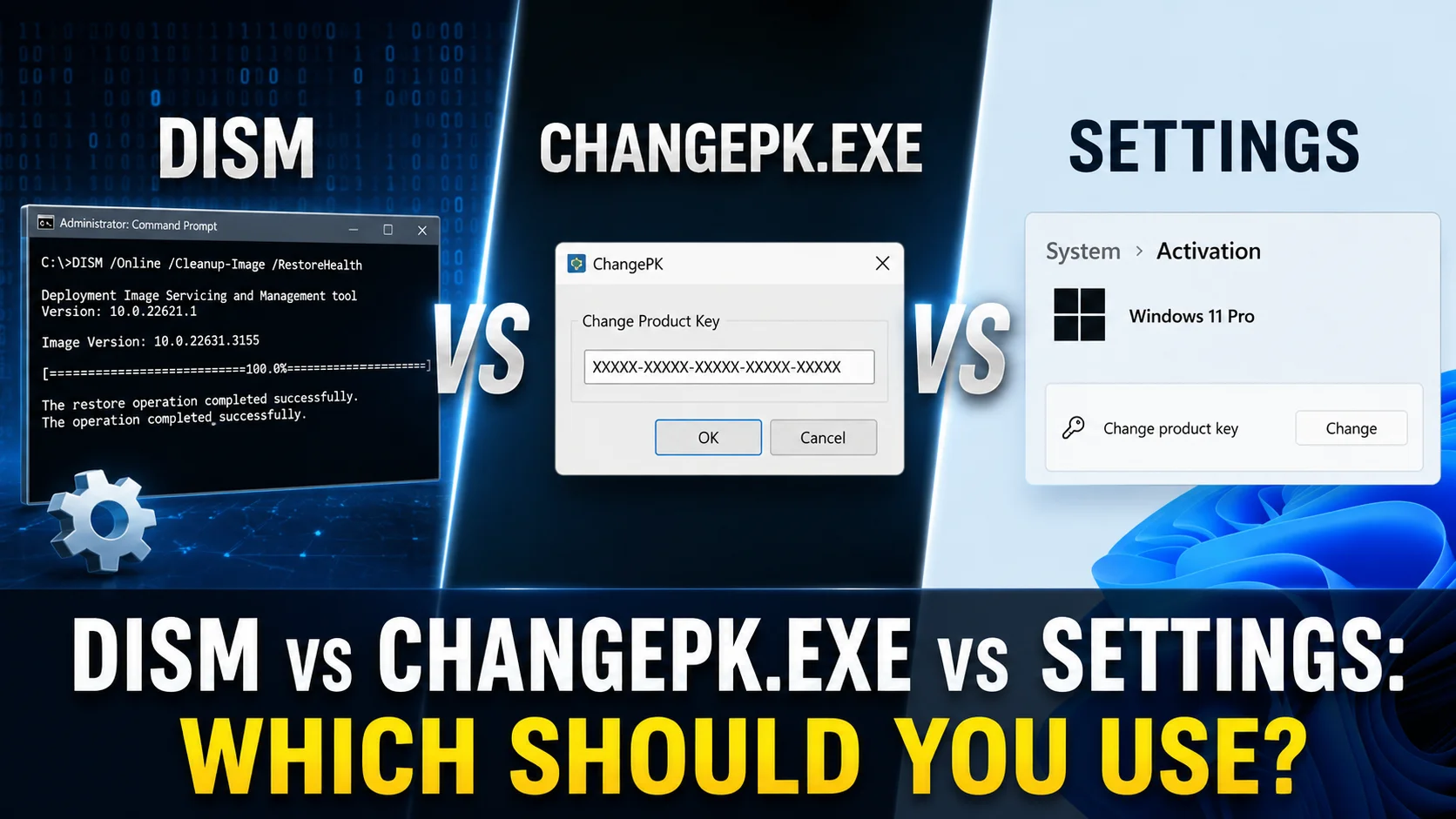
DISM vs changepk.exe vs Settings: Which Should You Use?
Three different tools can all switch your Windows 10 edition without a reinstall, but each one is built for a different kind of person. This guide compares them directly so you can pick the right one immediately instead of guessing.
The short answer
- One personal computer, doing this just once: use Settings
- Setting up many computers, or fixing a failed upgrade: use DISM
- Working through a remote connection, or an older script that already uses it: changepk.exe is fine, but DISM does the same job with more information
Settings (Update and Security, then Activation)
This is the point and click option, and it is genuinely the best choice for anyone doing one upgrade on their own computer.
What is good about it
- No command window needed at all
- Checks your key and shows clear messages if something is wrong
- Restarts the computer automatically for you
What is limited about it
- Only lets you move to a bigger edition, never a smaller one
- Does not show you which editions are even possible before you try
- Cannot be automated across more than one computer
Use it when: you are one person upgrading one computer, Home to Pro, Pro to Enterprise, or Pro to Education, and you already have a valid product key.
DISM (Deployment Image Servicing and Management)
DISM is the command line tool that Settings itself is secretly built on top of. It shows you the full picture before you commit to anything.
What is good about it
- The Get-TargetEditions command tells you exactly which editions are actually possible before you waste time trying something that cannot work
- Can be automated with a script to run across dozens or hundreds of computers
- Works both on a running computer and on a Windows image that has not been installed yet, useful for schools and businesses setting up many machines
- Gives much clearer error codes when something goes wrong, so problems are easier to actually fix
What is limited about it
- Command window only, no clickable menus
- A bit more setup for changing just one single computer
Use it when: you manage computers for a school or business, you are fixing a stuck edition change, or you want to check whether a downgrade is even possible before trying it. Our guide on bulk edition upgrades with PowerShell shows how to wrap DISM into a script for many computers at once.
changepk.exe
This is an older, more narrow tool. It exists to change the product key, and by extension the edition, from a command window or script, without ever opening the Settings app.
What is good about it
- Lightweight and does one very specific job
- Useful for remote sessions or old scripts where opening Settings is not practical
What is limited about it
- No way to check which editions are possible in advance, you only find out by trying
- Becoming less relevant since DISM and Settings both do the same job with better information
- Same as Settings, it only works moving to a bigger edition, not downgrading
Use it when: you are keeping an existing script or remote workflow running that already uses it, and it is not worth rebuilding around DISM right now. For anything new, DISM is the better long term choice.
Side by side comparison
| Settings | DISM | changepk.exe | |
| Interface | Clickable menus | Command window | Command window |
| Shows possible editions in advance | No | Yes | No |
| Works across many computers | No | Yes | Limited |
| Works on a Windows image, not just a running PC | No | Yes | No |
| Can move to a smaller edition | No | Sometimes, if files exist | No |
| Best for | One computer, one time | IT teams, troubleshooting | Old scripts, remote sessions |
The most common mistake
If you are not sure whether your target edition is even possible, especially for a downgrade, run the DISM Get-TargetEditions command first before touching Settings at all. It takes about ten seconds and tells you right away whether the change can even happen, instead of getting partway through in Settings and hitting a dead end. Check our DISM error guide if you do run into a failure partway through.
Frequently asked questions
Is DISM safer than Settings?
Neither one is riskier than the other, they do the exact same underlying job. DISM just gives you more information along the way, which is why IT teams prefer it for anything beyond a single casual upgrade.
Can changepk.exe do everything DISM can do?
No. changepk.exe only changes the product key for the current edition path. It cannot check possible editions ahead of time, work on an offline image, or manage many computers the way DISM can.
Do I need admin access for any of these?
Yes. All three require an administrator account, whether that is through the Settings app or an elevated Command Prompt or PowerShell window for DISM and changepk.exe.
Does this work the same way on Windows 11?
Yes. All three tools and their commands work exactly the same way on Windows 11 as they do on Windows 10.
What to do next
If you already know which edition you are switching to, go straight to the specific guide for that exact move. Our pillar guide links out to every upgrade, downgrade, and comparison article in this series.