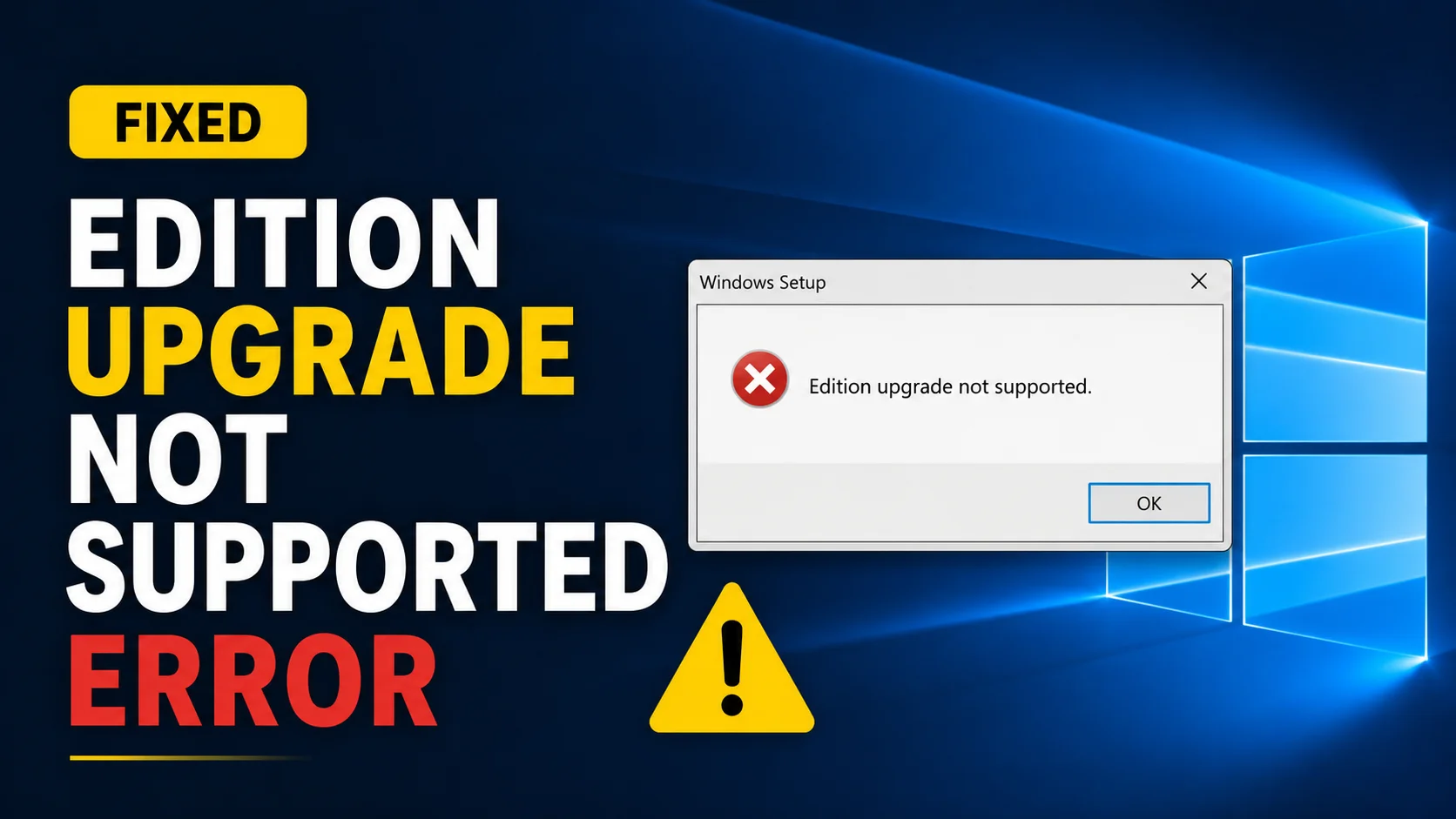
“Edition Upgrade Not Supported” Error: Causes and Fixes
What does “edition upgrade not supported” actually mean?
This message means Windows has checked your current edition, your product key, and your installation files, and it has decided the specific upgrade you are trying to do is not something it can perform right now. It is a blocking message, not damage to your computer, and it almost always comes down to one of four specific causes.
What causes this error?
1. You are trying to move to a lower edition
Windows edition changes are built to move upward only, Home to Pro, Pro to Enterprise, and so on. If you are trying to go the other direction, like Enterprise down to Pro, this message shows up because that path simply is not supported through an in-place change.
2. Your product key does not match an available upgrade path
The key you entered may belong to an edition that your current installation cannot switch to directly. For example, an Education key will not work on a computer that only has the files for Enterprise available.
3. Your edition and architecture do not line up
Edition changes only work within the same processor architecture. A key or upgrade meant for a 64 bit system will not work on a 32 bit installation, and vice versa.
4. Your Windows installation is missing files for the target edition
Just like with an empty Get-TargetEditions list, if the necessary files for your destination edition were never included in your current Windows image, the upgrade cannot proceed no matter how correct your key is.
How do I fix “edition upgrade not supported”?
Step 1: Confirm your current edition and your target edition
Use winver or Settings, About to check your current edition first. Then double check that your intended target is genuinely a step up, not sideways or down.
Step 2: Check what your installation can actually support
Run this command to see your real options:
DISM /Online /Get-TargetEditions
If your intended edition is not listed here, this error is expected, and no amount of retrying the key will change that.
Step 3: Double check the product key against the correct edition
Make sure the key you are using was actually issued for the edition you are trying to reach, not a different one that sounds similar. A Pro Education key, for example, is not the same as a plain Education key.
Step 4: If you are downgrading, plan for a clean install instead
If everything above confirms you are attempting a downgrade, or the needed files genuinely are not present, a clean install using the correct edition’s official installation media is the dependable fix.
Quick reference: common causes and fixes
| Cause | Fix |
| Trying to move to a lower edition | Use a clean install with the lower edition’s media instead |
| Key does not match an available edition | Double check the key against your intended target edition |
| Architecture mismatch (32 bit vs 64 bit) | Use installation media matching your system’s architecture |
| Target edition files missing from your image | Use an official ISO with the correct edition included, or a clean install |
Frequently asked questions
Does this error mean my product key is fake?
Not necessarily. It usually means the key does not match an edition your current installation can switch to, which is different from the key being invalid or fake.
Can I bypass this error and force the upgrade anyway?
No, and you should not try to. This check exists because the underlying files genuinely are not available for that move. A clean install is the correct next step instead of trying to force it.
Will restarting my computer fix this error?
Sometimes, if the cause was a temporary glitch or a pending update. It will not fix a genuine downgrade attempt or a real missing files issue.
What to do next
If you are still not sure which method fits your exact situation, our guide on changing Windows 10 edition without reinstalling walks through every upward path, and when a clean install is genuinely the only option.